WordPress plugin
Site Offline Pro: Coming Soon and Maintenance Pages
Site Offline Pro lets you present a temporary page while a WordPress site is being built, updated, or taken offline. Configure its content and colors, add a logo and background, and use the live preview to review the page before enabling offline mode.
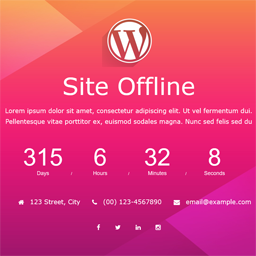
Site Offline Pro lets you present a temporary page while a WordPress site is being built, updated, or taken offline. Configure its content and colors, add a logo and background, and use the live preview to review the page before enabling offline mode.
Templates and page content
Choose from eight design templates. Pro settings include a countdown timer, background slideshow, and YouTube video background. You can also add About Us, Team, Contact Information, Contact Form, Google Map, and Service pages, then disable sections you do not need.
- Responsive, retina-ready layouts with customizable colors and backgrounds
- 16 or more social profile options, with drag-and-drop arrangement
- More than 500 Google Fonts
- Translation-ready i18n support and cross-browser support
- Seven or more newsletter options, a subscriber list, and integrations for Mailchimp, Madmimi, iContact, Constant Contact, Campaign Monitor, and GetResponse
Newsletter tools can collect sign-ups before launch. Contact details, social profiles, and additional pages give visitors ways to follow updates or learn about the site.
Visitor access controls
Available controls include auto launch, IP access, visitor access, a landing page option, and SEO options. These options help administrators work on the site while displaying the offline page to other visitors.
Install and enable offline mode
- Install and activate Site Offline Pro in WordPress.
- Open the plugin settings and pick a template or configure the page sections.
- Add a logo, background, countdown, contact details, social profiles, and newsletter settings as needed.
- Review the page in the live preview, then enable Site Offline mode with the activation control.
To check the visitor view, open the site in another browser where you are not logged in. If a cache add-on is active and the offline page does not appear, temporarily deactivate the cache plugin and check again.